Docs · Apps for Jira
Project Directory for Jira
Every project you can see in one directory — table or cards, with search, filters, status, lead, and CSV export on Jira Cloud.
Runs on Atlassian · No data leaves Atlassian
Try free for 30 days · Free for teams ≤10 · then USD 0.45/user/mo via Atlassian
Start here (first 10 minutes): open the directory, set status/lead on a few projects, save a view you reuse weekly — that directory habit is what Free ≤10 teams keep when they grow. Free for teams ≤10 · then USD 0.45/user/mo.
Find projects faster guide Support · info@berkly.nl01 — How it works
One directory for the projects on your site
I built Project Directory so you can browse every Jira project you are allowed to see from a single Forge page — instead of hunting through Jira’s own project list menus.
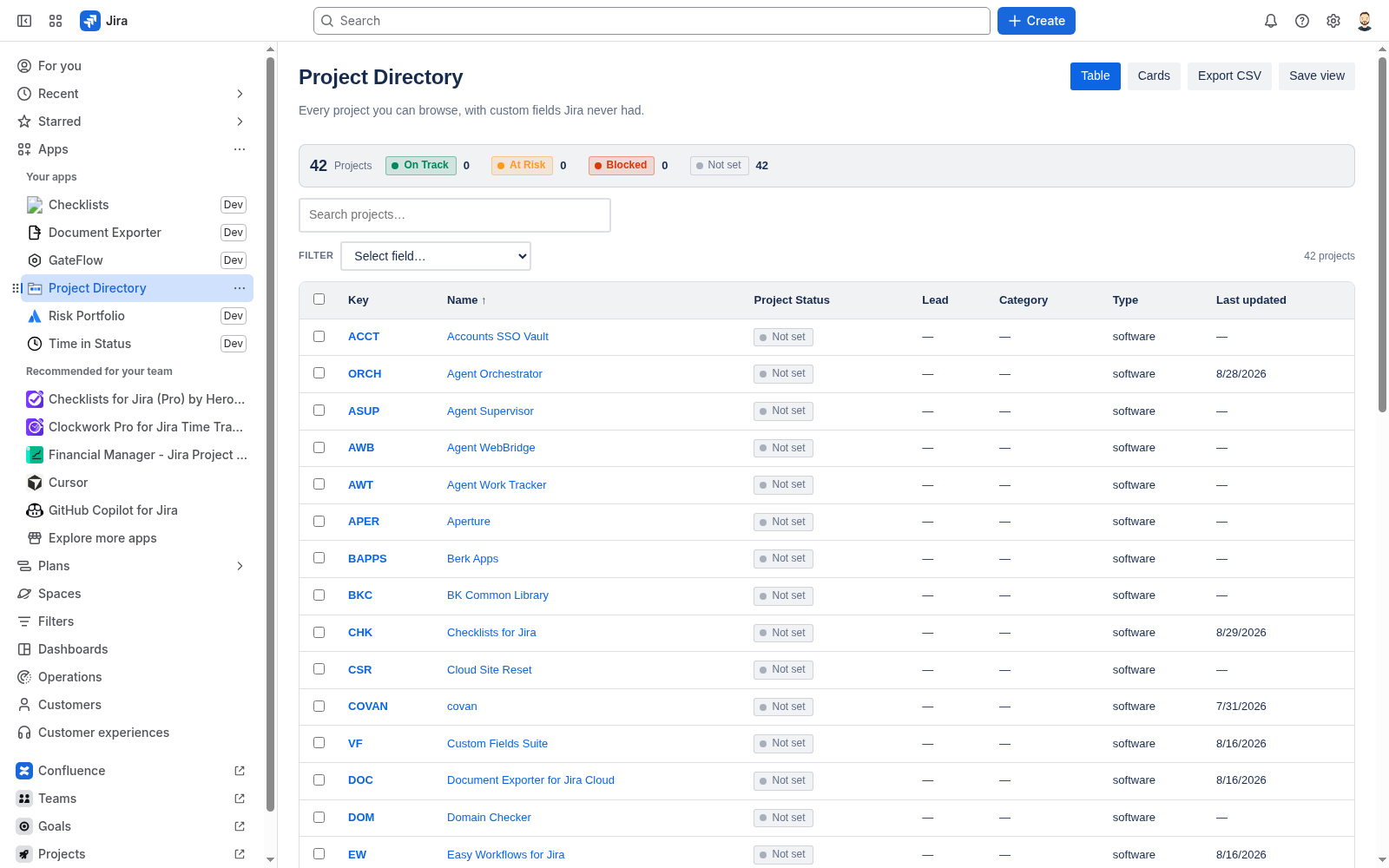
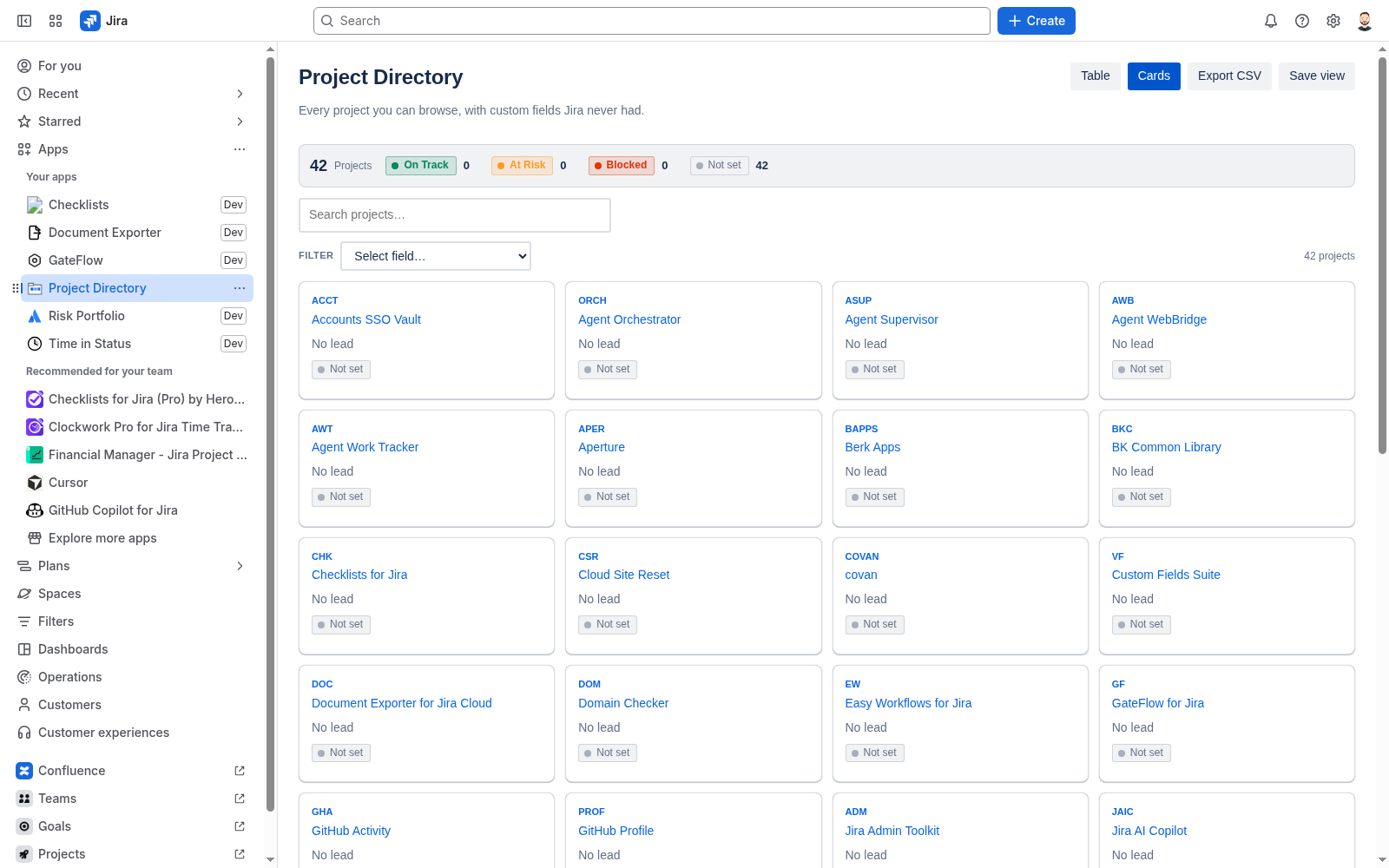
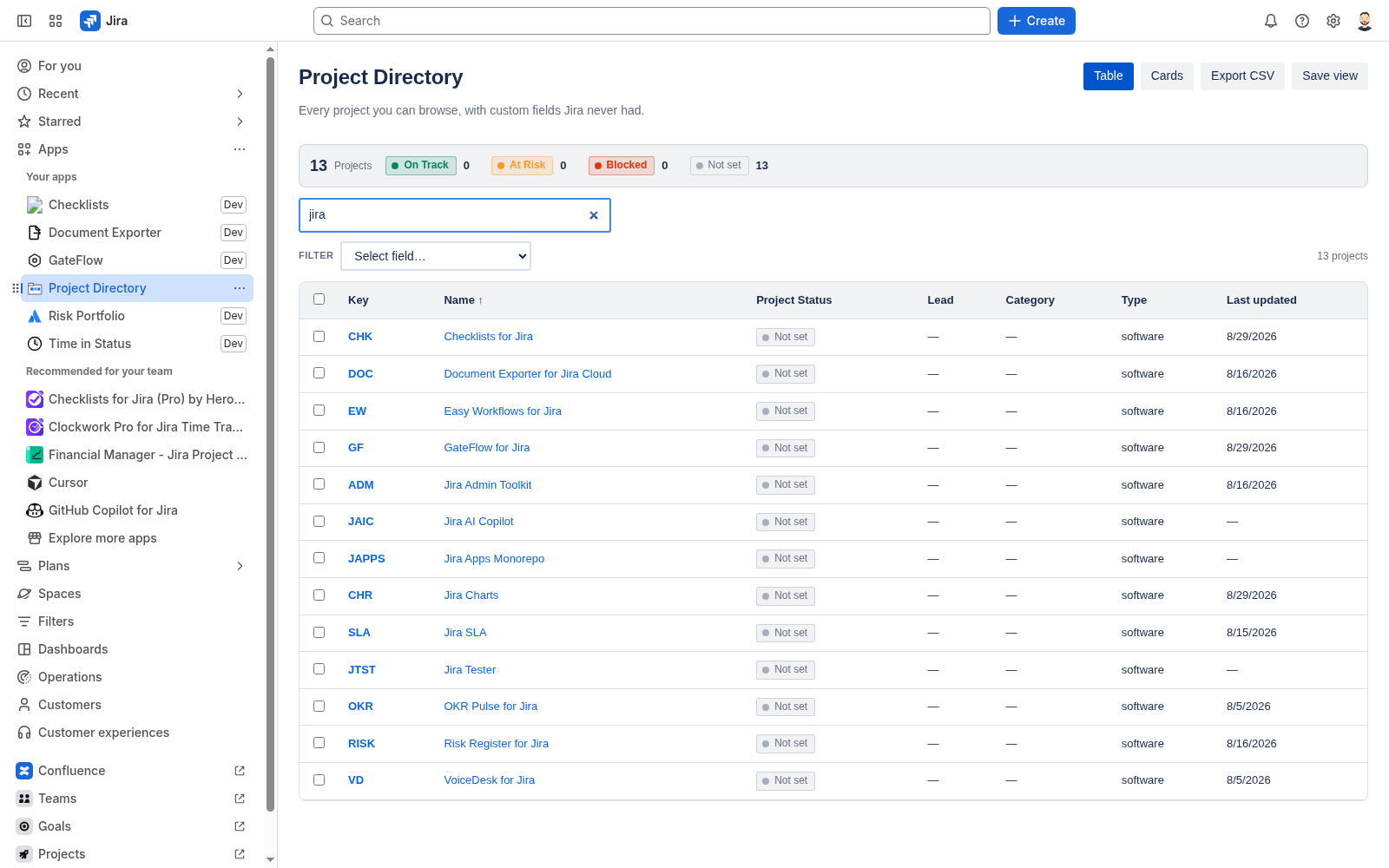
The directory shows key, name, status, lead, category, type, and last updated. Flip between Table and Cards. Search by name or key, add field filters when the list is long, save a view you reuse, and export CSV when you need a snapshot outside Jira.
There is no external server in the path. The app is Forge on Jira Cloud. Intended design is no egress: compute runs in Atlassian Forge, and customer data stays in your Jira site / Forge storage.
02 — Main use cases
When teams open the directory
- Find a project fast — type a name or key and jump straight to it.
- Scan health at a glance — status values such as On Track, At Risk, Blocked, and Not set sit in the summary bar and as columns/cards.
- See who owns what — lead, category, and type in one place Jira’s stock project list does not give you together.
- Share a snapshot — export CSV or save a filtered view for recurring reviews.
03 — Key features
Table, cards, search, and filters
04 — Setup / install
Install from the Atlassian Marketplace
After Free ≤10 / the trial, paid is USD 0.45/user/mo via Atlassian — billed on the Marketplace like any other Cloud app.
- Open the Atlassian Marketplace listing for Project Directory for Jira (Jira Cloud): https://marketplace.atlassian.com/apps/876054797/try?hosting=cloud.
- Choose your site and install. A site admin must approve the scopes shown on the install screen.
- After install, open the app from Apps (or Settings → Apps → Project Directory, depending on your Jira navigation).
- Confirm the directory loads with the projects you are allowed to see.
Jira Cloud only. No Data Center / Server. The directory respects Jira project permissions — users only see projects they can already access.
05 — How to use
Browse, filter, save, export
- Open Project Directory from Apps.
- Use Table for dense columns or Cards for a visual scan.
- Type in search to match name or key. Add a field filter when the list is long.
- Update status / lead fields where the UI allows so the directory reflects how the portfolio is actually running.
- Save a view you reuse for weekly reviews. Export CSV when you need an offline snapshot.
Important notes
- Empty results usually mean permissions or filters — clear filters and confirm you can open the same projects in Jira.
- Status summary (On Track / At Risk / Blocked / Not set) counts the filtered set currently on screen.
06 — How to test
A five-minute smoke check
- Install check: Apps → Project Directory opens without error.
- Table: Confirm projects appear with key, name, and status columns.
- Cards: Switch to Cards and confirm the same projects render as cards.
- Search: Type part of a known project name or key; the match count drops accordingly.
- Filter / export: Apply one field filter, then export CSV (or save the view) and confirm the result matches what you see.
07 — Support
Questions land with me
I am Berk Karabacak, an individual developer. Public contact for this app is info@berkly.nl only.
Support hours: Monday–Friday, 09:00–18:00 Europe/Istanbul.
Privacy: berkly.nl/privacy. DPA: berkly.nl/dpa. More app docs: berkly.nl/docs.
Runs on Atlassian · No data leaves Atlassian