Docs/SLA for Jira Software/Configuration & admin
SLA for Jira Software
Configuration & admin
Admin setup, scopes and settings
Nothing is measured until a project admin sets SLAs for a project. Each project has its own SLAs; a Jira site admin manages the shared working-hours calendars and the app health page.
Set SLAs for a project
- As a project admin, open the project, then Project settings → Apps → SLA.
- On the Targets tab, pick a starter SLA (for example Time to triage) or add your own, and set the target.
- Press Save SLAs at the bottom of the tab. Nothing is saved until you do.
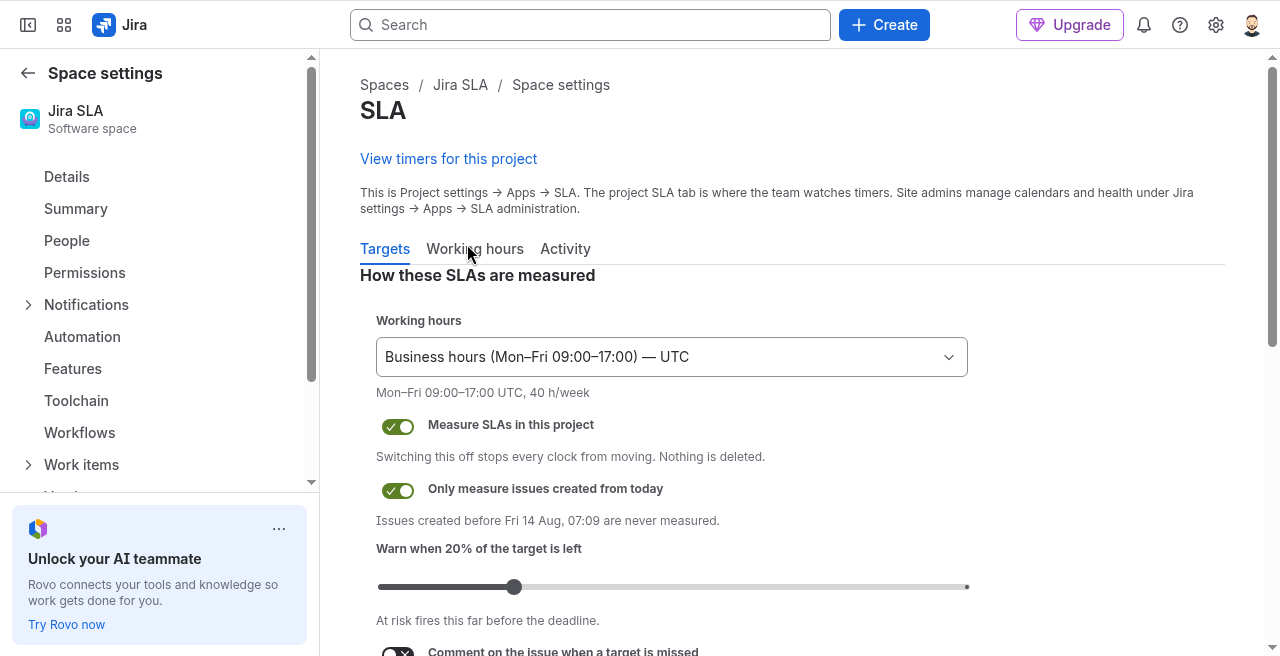
The settings page has three tabs: Targets, Working hours and Activity (recent clock events for the project).
Targets: what each SLA measures
Each SLA has a Name (a label only), What to measure, Runs while the issue is in (statuses), a Target and Unit (optionally a different target per Priority), and Pause while the issue is in or Pause while the issue is flagged. The dialog shows what the SLA will do before you save.
Targets: project-wide options
The calendar the clocks count in. Time outside working hours does not count.
Switching this off stops every clock from moving. Nothing is deleted.
On: issues created before that date are never measured. Off: every existing issue is in scope, including the backlog.
The at-risk point. The timer turns amber and is listed under At risk now. It sends no message.
Adds a comment on the work item when a target is missed.
The label is fixed, so it is always the same one to search for.
Site admin page
A Jira site admin opens Jira settings → Apps → SLA. Tabs: Goals, Calendars (working-hours calendars), Projects (which projects measure SLAs, and Apply to existing issues), SLA in JQL and Health (checks the clocks and can rebuild the JQL index).
Where the clocks show
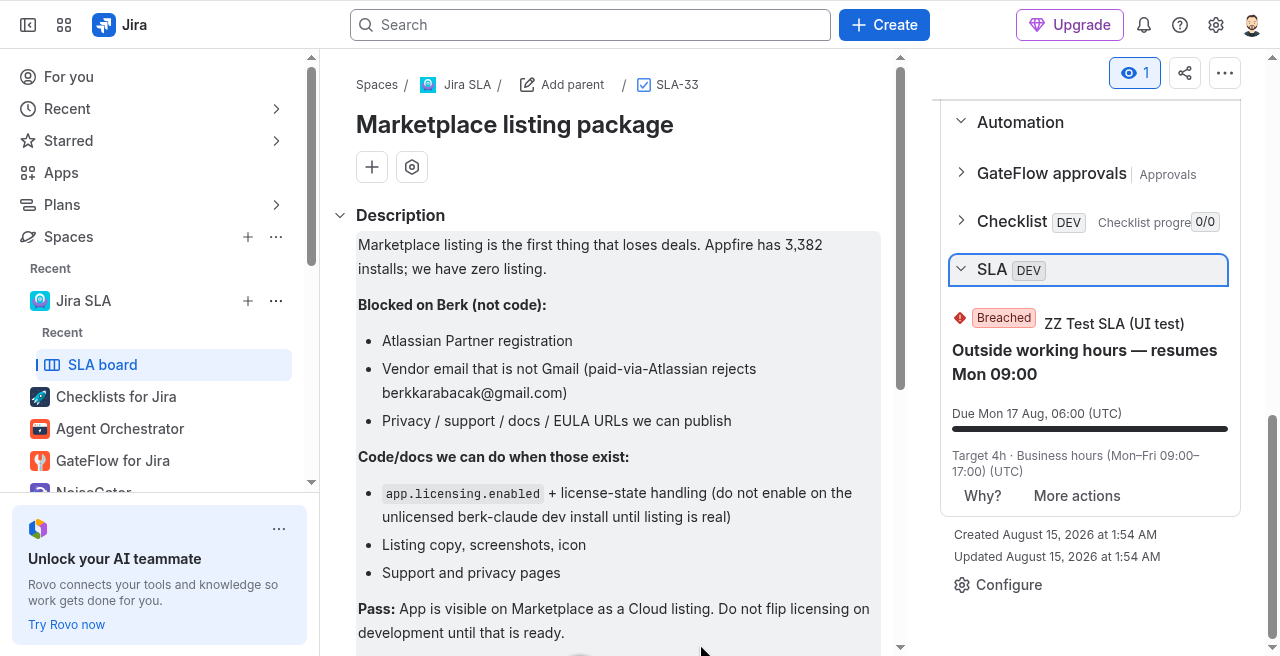
- The SLA panel on each work item.
- The project SLA tab: At risk now, On-time %, All timers and Report.
- JQL, for example
slaState = "breached" AND project = ABC ORDER BY slaDueAt ASC. - Jira Automation: the action Check SLA timer (breach / at risk) reads a work item's SLA so later rule steps can act on it.
Permissions the app asks for
On install Jira shows these scopes: read:jira-work, write:jira-work (the JQL index, breach comments and labels), read:jira-user and report:personal-data. The app declares no external hosts, so no data leaves Atlassian.
Screenshot