Docs/Berkly Time in Status for Jira/Configuration & admin
Berkly Time in Status for Jira
Configuration & admin
Admin setup, scopes and settings
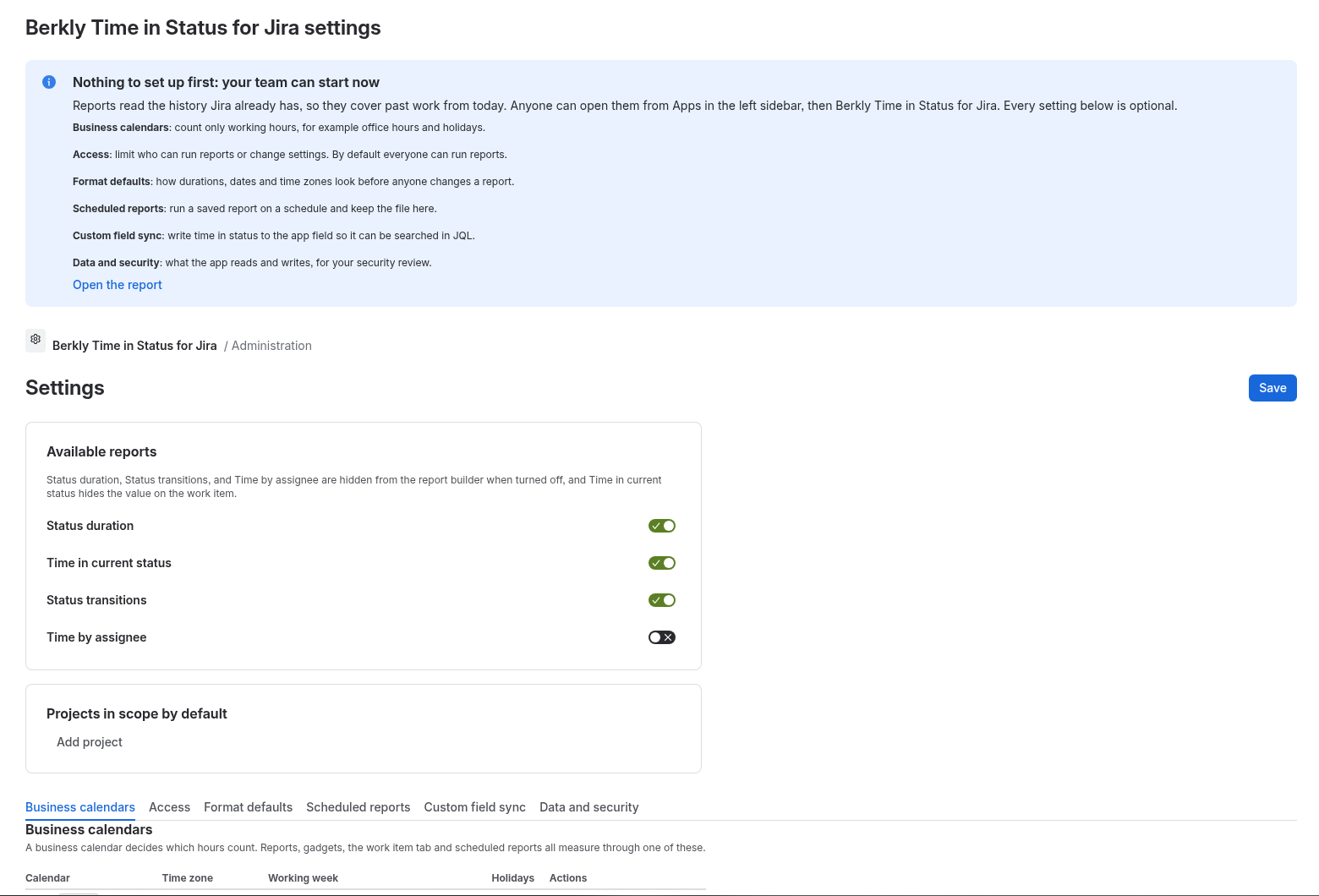
Nothing has to be set up first. Reports read the status history Jira already keeps, so they cover past work from the day you install. Anyone can open them from Apps in the left sidebar, then Berkly Time in Status for Jira. Every setting below is optional.
Open the settings
- As a Jira admin, open Jira settings, then Apps (Manage apps).
- In the sidebar, pick Berkly Time in Status for Jira settings.
- Change what you need and press Save at the top right.
Available reports
Turn each report type on or off: Status duration, Time in current status, Status transitions and Time by assignee. A report you turn off is hidden from the report builder; turning off Time in current status hides that value on the work item.
Projects in scope by default
Use Add project to choose which projects new reports start with.
Settings tabs
Count only working hours, for example office hours and holidays. Reports, gadgets, the work item tab and scheduled reports all measure through a calendar (time zone, working week, holidays).
Limit who can run reports or change settings. By default everyone can run reports.
How durations, dates and time zones look before anyone changes a report.
Run a saved report on a schedule and keep the file in the app.
Write time in status to the app field so it can be searched in JQL.
What the app reads and writes, for your security review.
Permissions the app asks for
On install Jira shows these scopes: read:jira-work, read:jira-user, read:group:jira, storage:app and write:jira-work. The app declares no external hosts, so no data leaves Atlassian. The Data and security tab explains each one, including why the consent screen mentions deleting issues.
Screenshot